A self-service onboarding where clients build their legal case file step by step. I designed six of its flows, in desktop and mobile, for older users who aren’t comfortable with tech.
(01)The problem
A long legal process feels scary when you’re not comfortable with tech.
The real challenge
The audience: older adults who don’t use much technology.
A long legal process that intimidates people. The anxiety is part of the problem.
Ease and accessibility had to guide every decision.
The context
When a client hires the legal service, a long process starts: upload documents, answer questions and complete steps until the case file is ready to submit. The app guides that on its own.
Version 1 was already live. Research showed where real users got stuck, and the brief was to design v2 around those findings.
What I did
Home and welcome, the entry point
The chatbot
Payment details and payment management
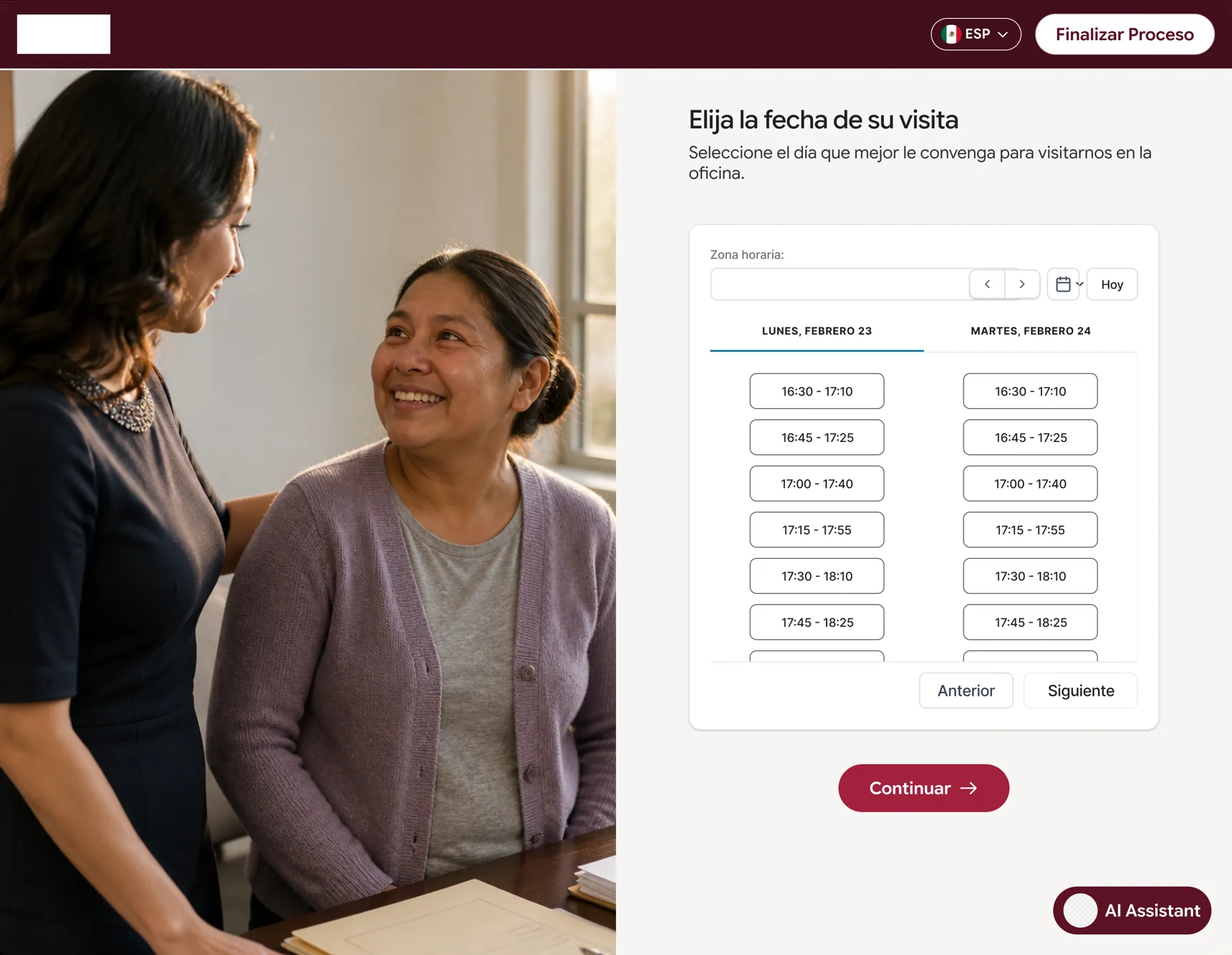
Appointment scheduling
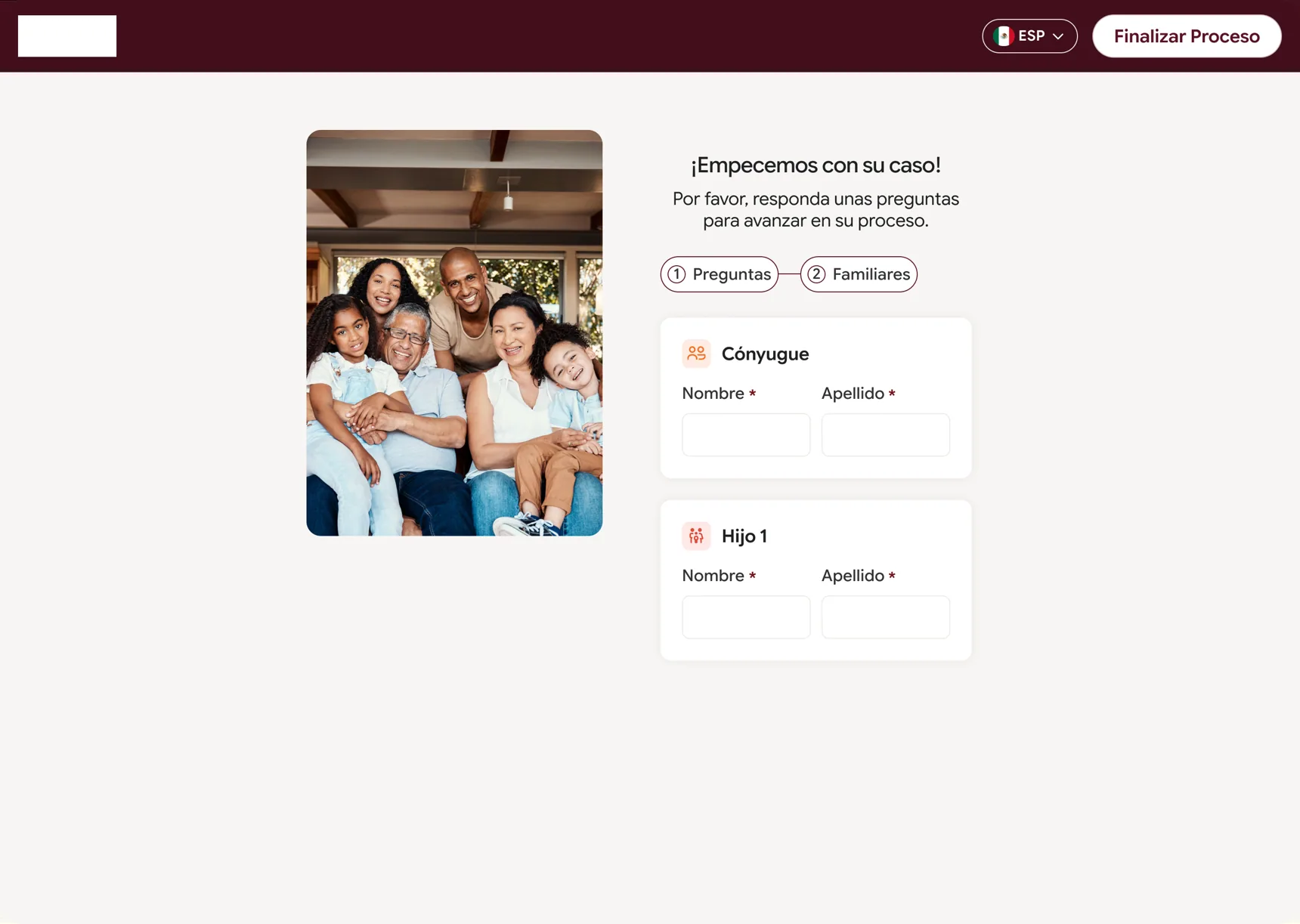
Adding family members to the case
Service selection, comparing two options
What the team did
The team had already run research on v1 with real users
The other designer covered the rest of the flow, with the same visual language
(02)Design rules
What the audience needed, turned into rules.
Low tech literacy
Let them pick the format: chat with an assistant or a guided form.
Anxiety
Confirm every step: details received, payment done, appointment booked.
Hard legal concepts
Explain them in plain words, right next to the question.
Small targets, long texts
Large buttons, short steps and plain language, with the formal “usted”.
(03)Key decisions
Five decisions that keep people from getting lost.
For someone who isn’t comfortable with tech, the first screen is the first barrier.
Decision
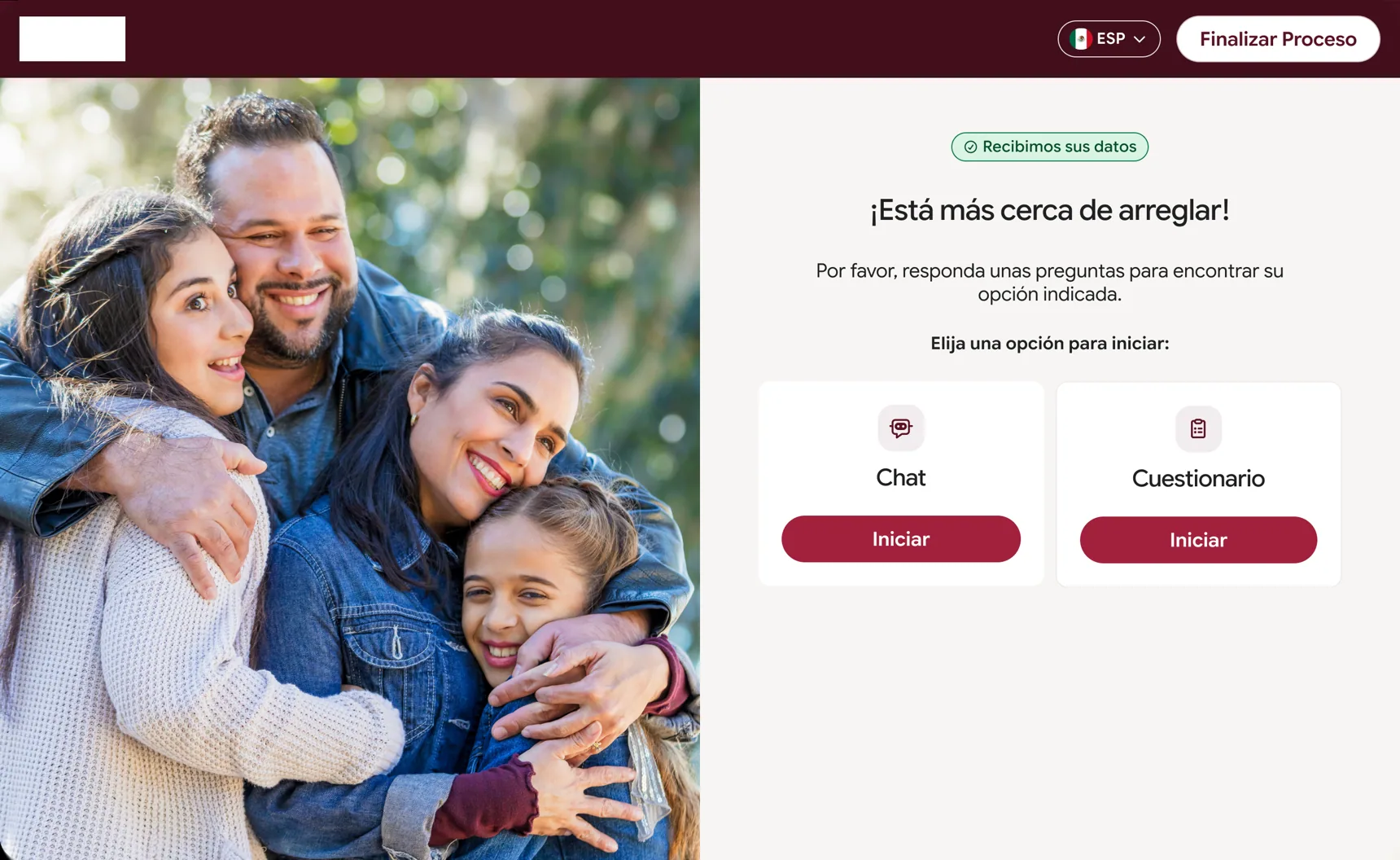
They choose how to start: chat with an assistant or fill out a guided form. A “We’ve got your details” badge shows up early, and terms are accepted inside the chat with two buttons.
Why
Picking the format that feels natural removes that first barrier, and the early confirmation eases anxiety before we ask for anything.
1“We’ve got your details”: they know early that they’re on track
2Chat with the assistant
3Or a guided form, whichever feels natural
B · Questionnaire
Help right next to the question
Problem
Some questions use legal concepts that are hard to understand.
Decision
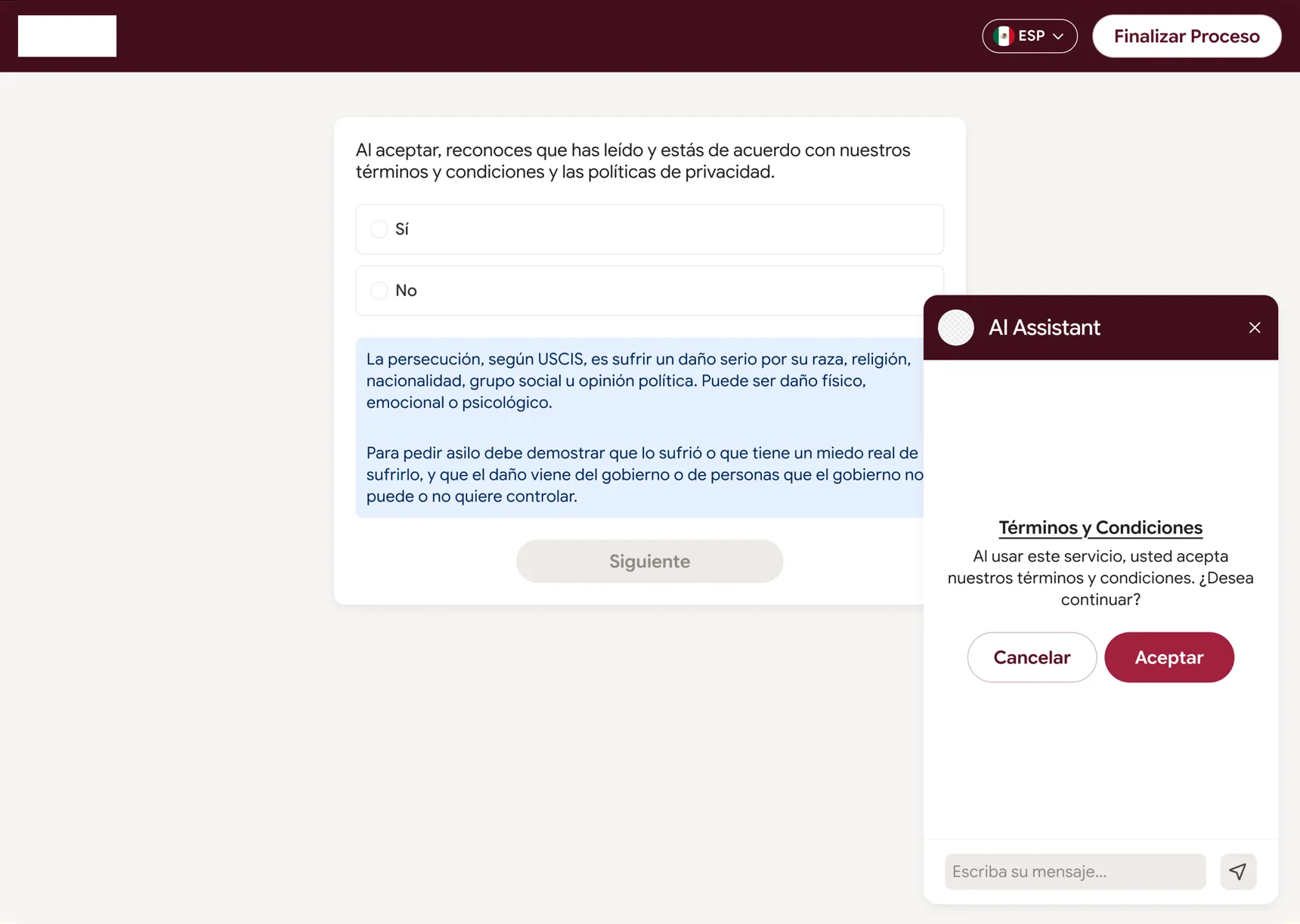
A plain-language explanation appears right next to the question. “Next” stays disabled until they answer.
Why
They don’t have to leave to look things up, and they can’t skip a step by accident.
1Plain-language explanation next to the question
2“Next” stays disabled until they answer
3Terms accepted inside the chat, with two buttons
C · Service selection
Clear options and prices up front
Problem
Clients had to pick between two service options with a different scope and price.
Decision
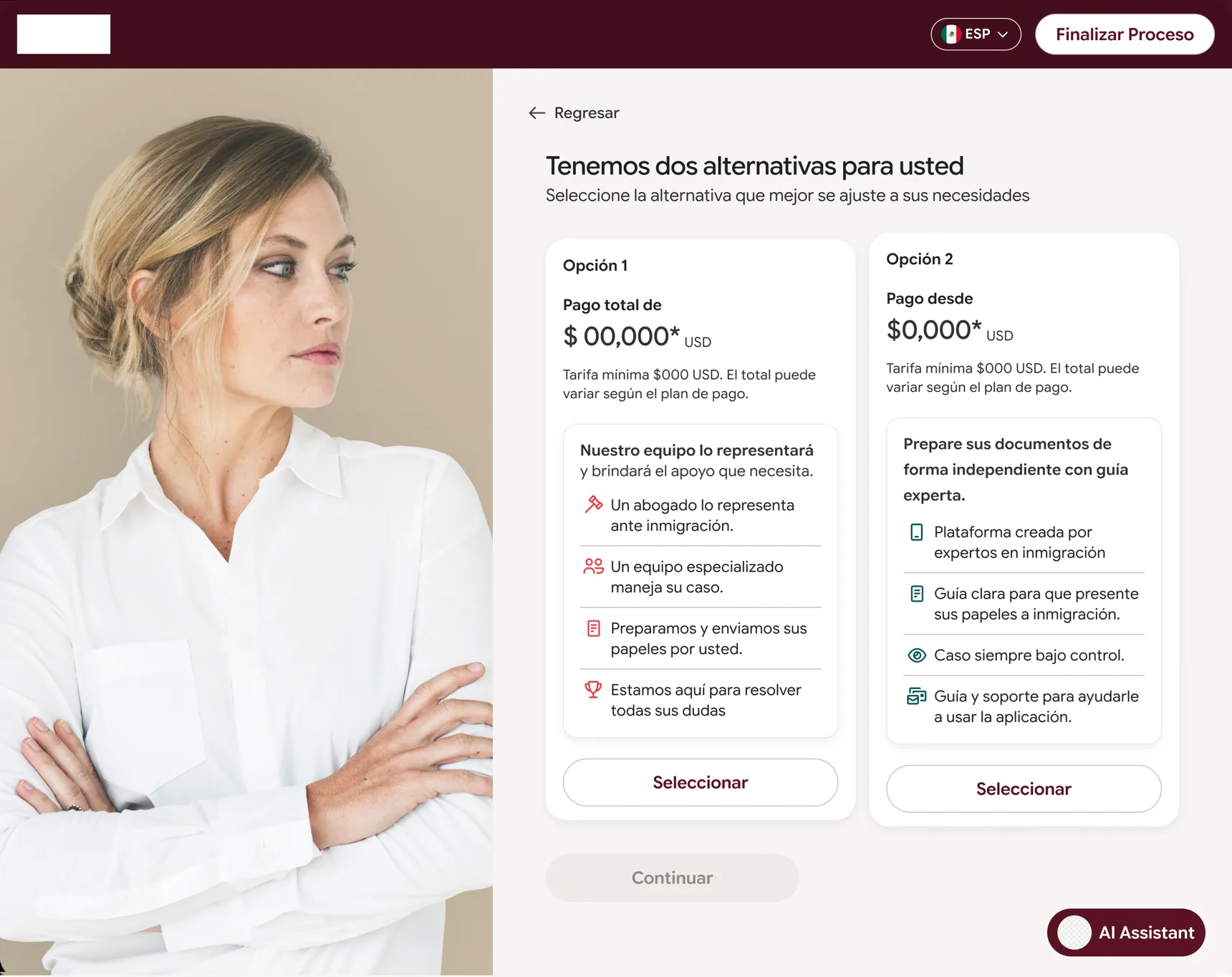
Both options sit side by side, each with a clear price and its benefits in short phrases with icons. On mobile, a line says “Swipe to explore the options”.
Why
They decide with the full picture. On mobile we tell them the carousel is there instead of hoping they find it.
1The price comes first
2The second option, right next to it
3Benefits in short phrases with icons
D · Payment
One total, few fields, a clear confirmation
Problem
For these users, the doubt of “did the payment go through?” is real.
Decision
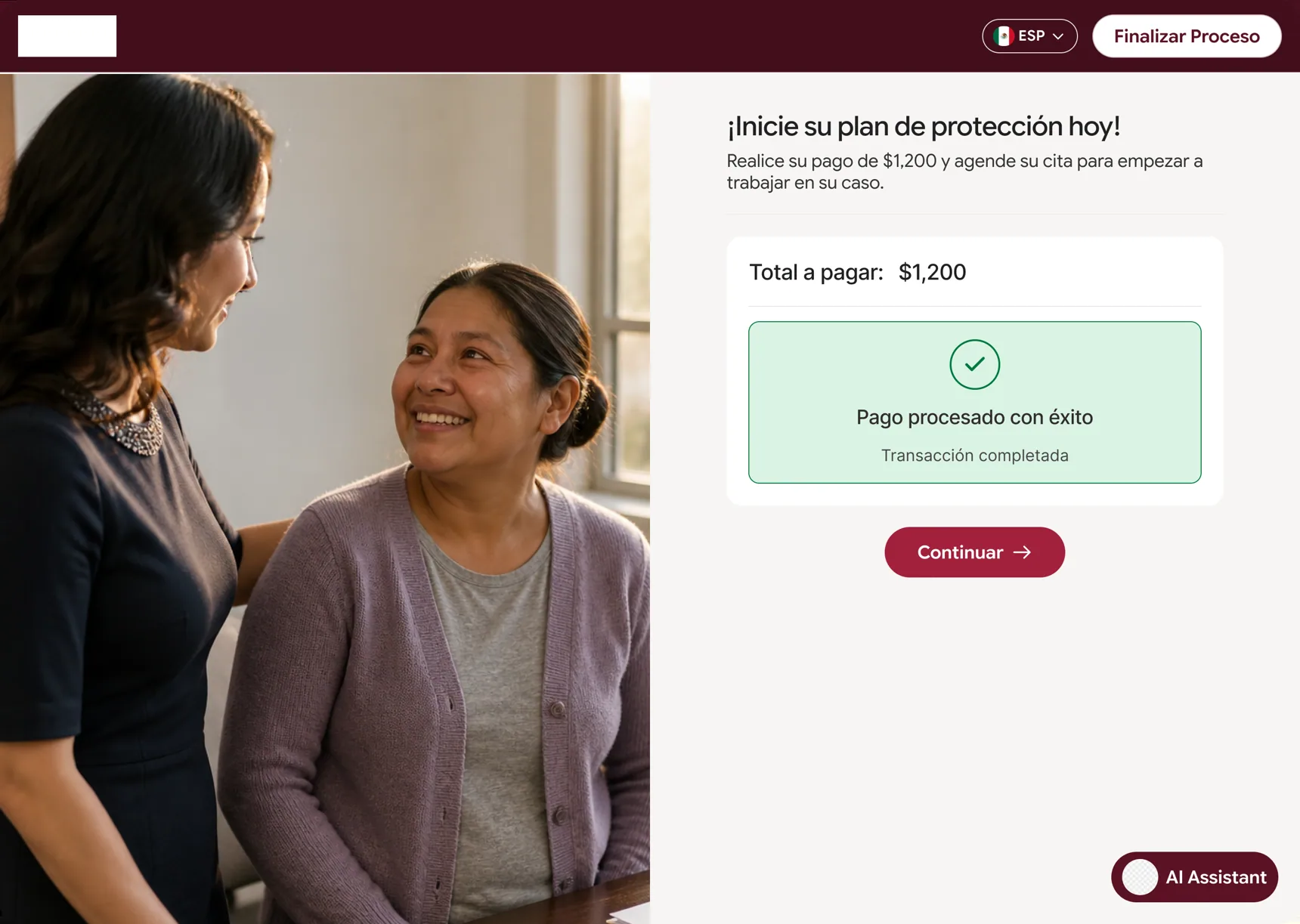
The total shows before any field and the form is short. They can pay now or save the card, pay by cash or check, or choose “I’m not ready”. Success shows in a clear green state.
Why
There’s always a way forward, and the green state removes the doubt.
1The total first, a short form and several ways to pay
2The payment confirmed in an unmistakable green state
E · Scheduling
Recognition, not memory
Problem
After booking, people need to remember when and where their appointment is.
Decision
Time slots are large buttons grouped by day. The confirmation answers When? and Where? in separate cards.
Why
They recognize their appointment at a glance instead of having to remember it.
1Large time slots, grouped by day
2The confirmation answers When? and Where?
Across the flow
Help is always in front of the form
The left half of the screen plays a short video that guides each step, and they can replay it.
Steps with several people, like adding family members, use a two-step stepper with one card per person and few fields.
(04)Outcome
What changed
Starting the process
2 ways
to begin: chat with an assistant or a guided form, whichever feels more natural.
Payment
4 options
Pay now, save the card, cash or check, or “I’m not ready”.